Try On Photoshoot
How to use the Product Lens AI Try On Photoshoot
To create a try-on photoshoot, you first need to upload a photo of the product you want to try on. Then you need to upload a photo of the person you want to try on the product. If you don’t have any photos of people, you can use the ‘Create’ tool in the sidebar, or you can select from our built-in collection.
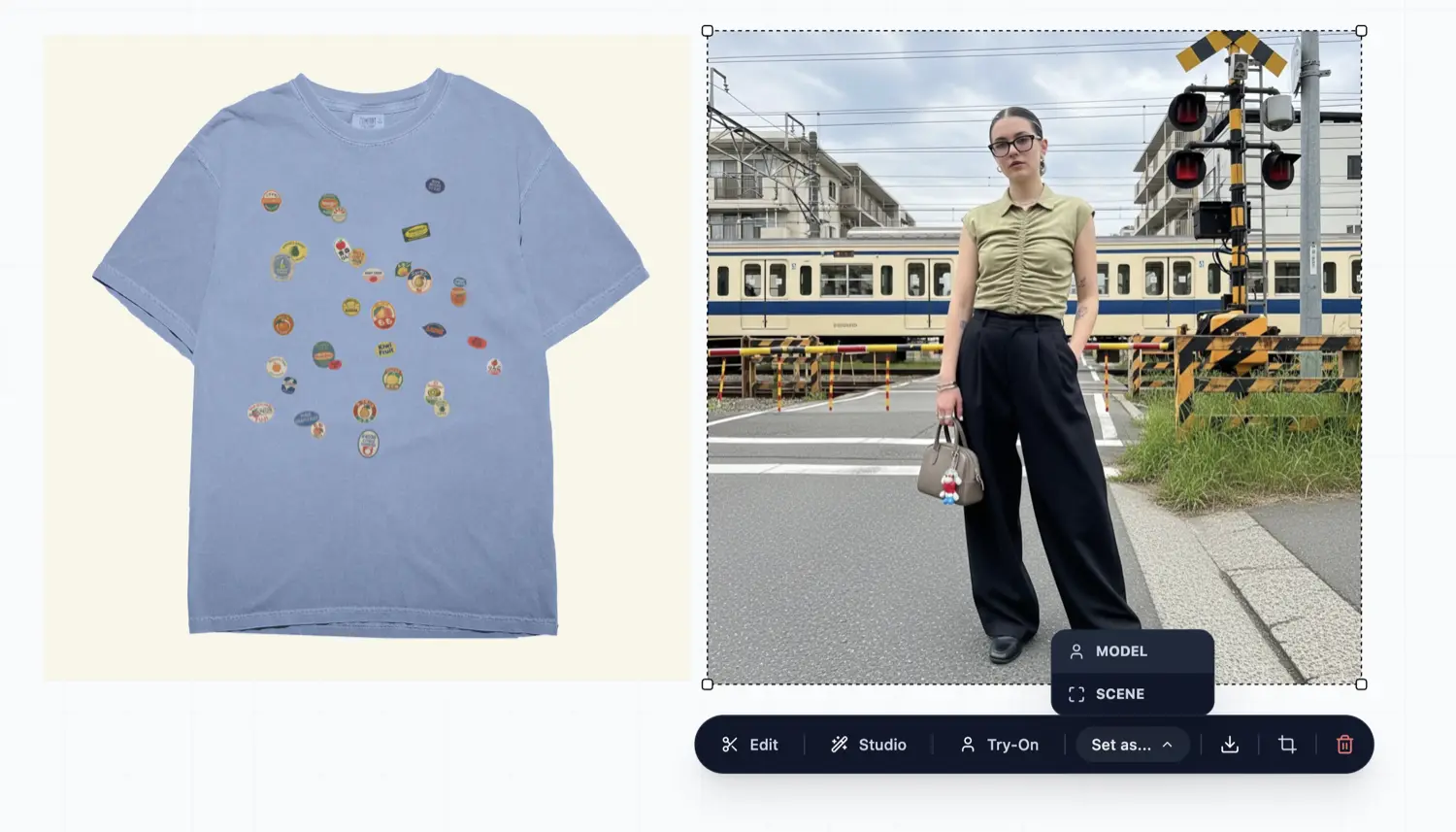
Now you need to set the person photo as the ‘Model’, simply click the ‘Set as…’ button on the floating toolbar and select ‘Model’.
Now select your product and click ‘Try-on’ from the same floating toolbar.
This opens the try-on panel, and it should show the selected product and model. Please double check that these are selected correctly.
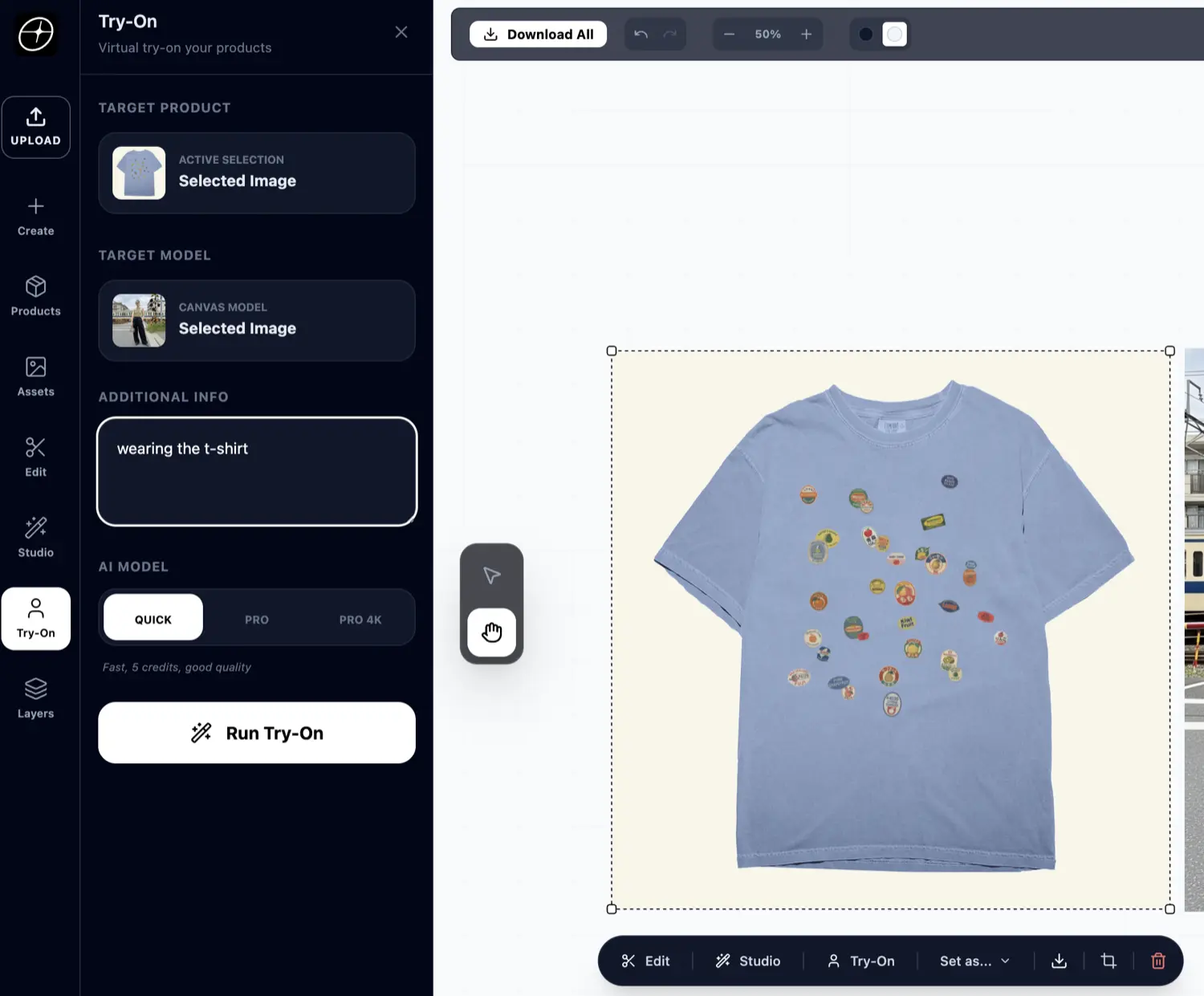
In the additional info box, enter information that you think may be helpful for the AI to create a better try-on. Examples:
- Wearing the t-shirt
- Wearing the hat on the womans head
- Wearing the shirt, untucked, oversized fit
- Wearing the pants, loose fit
Choosen an AI model (Quick is good for testing ideas, but you can use Pro for better results), and click ‘Try-on’.
The AI will now create a try-on for you.
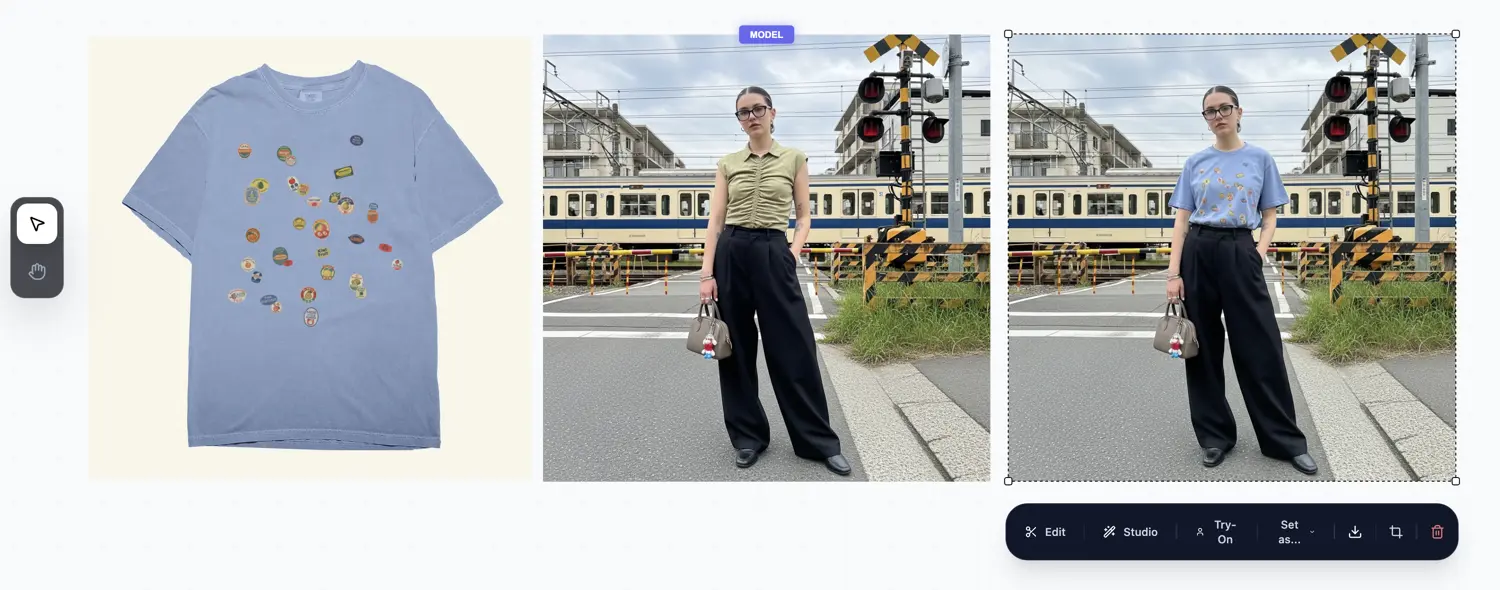
You can now download the image, ready to use on your website, store, or social media.