Create a Room
How to use the Product Lens AI to create a custom room
Who is this for: interior designers, ecommerce stores, and anyone who wants to create a custom room using specific decor items.
How to use
Upload / add all the products you want to use to create a room to the canvas.
Arrange them on the canvas so they are not overlapping each other, the specific arrangment/order doesn’t matter.
Click and drag you mouse over all the images to select them, a popup will appear under your selection.
Here you describe the room, and you can also specify how the products should be arranged in the room.
Click the merge button and the AI will create a room for you.
You can now download the image, ready to use on your website, store, or social media.
Examples
Example 1 Before
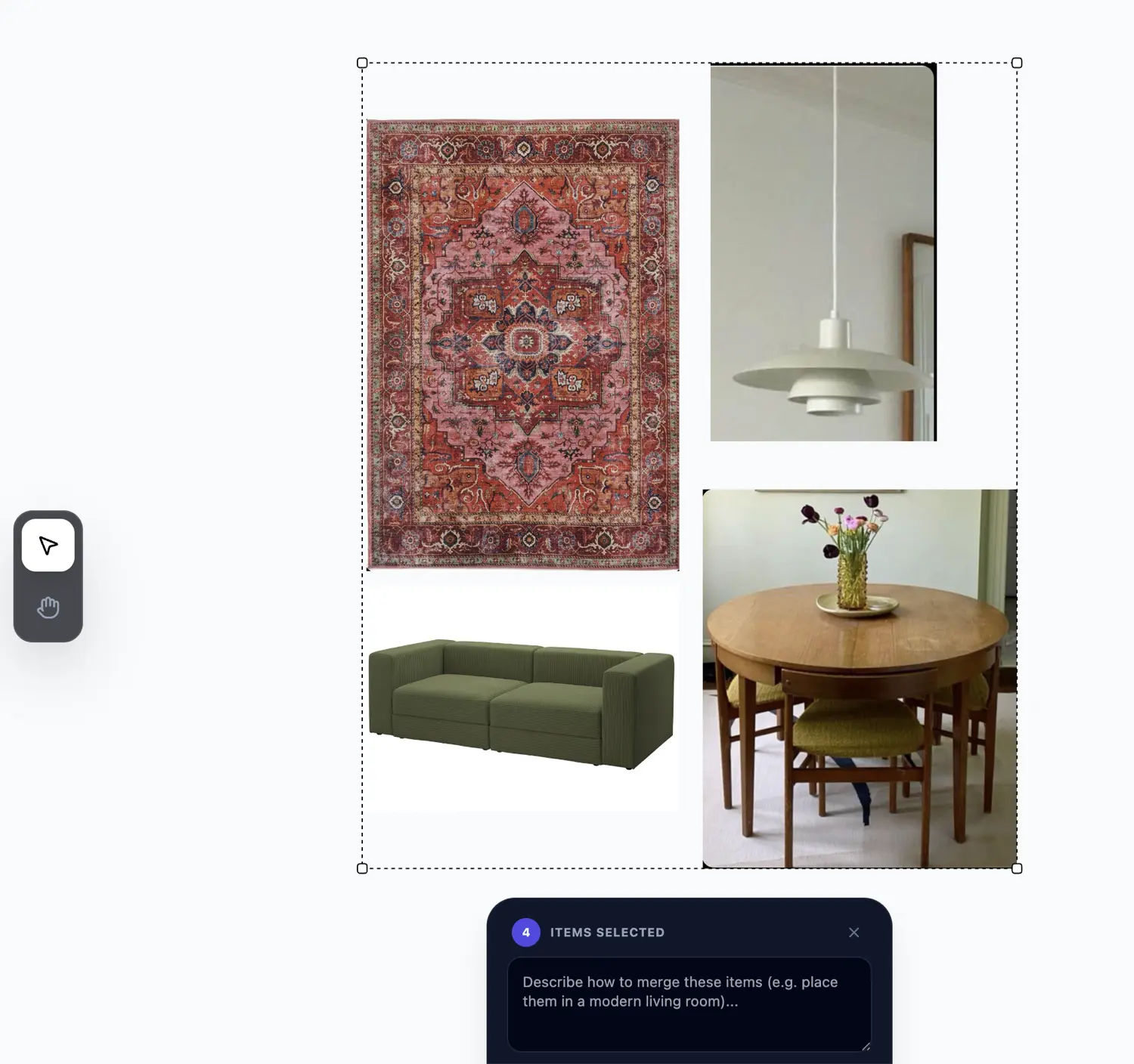
Prompt used:
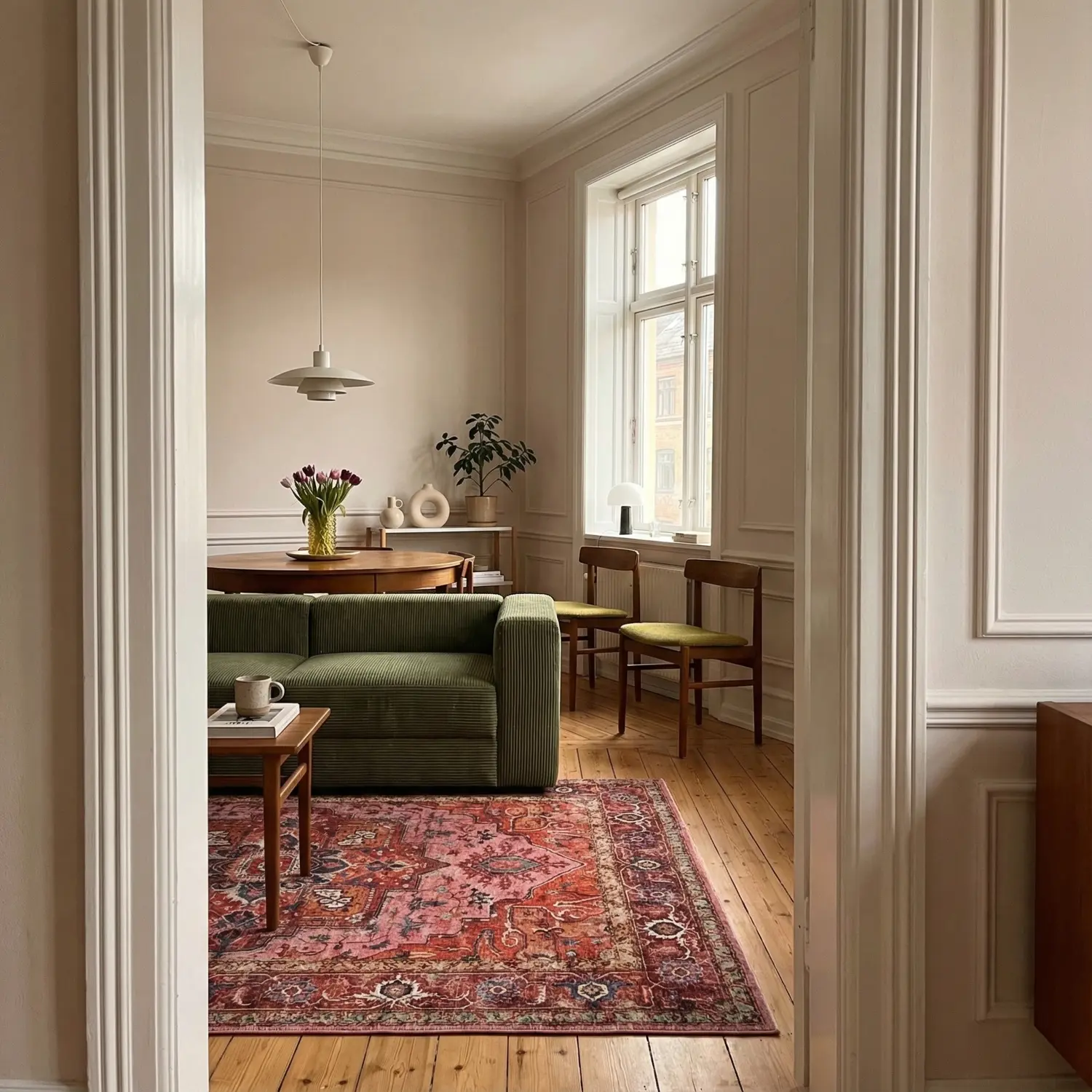
Warm, stylish dining/living room viewed through a doorway, decorated in a modern European apartment style. Incorporate the attached furniture and decor items. The room has pale walls, elegant molding, and warm wooden floorboards. Overall mood: cozy, minimal, Scandinavian–Japanese inspired interior, natural light, high realism and subtle textures. iPhone camera, candid interior photo.
Example 1 After
Example 2 Before
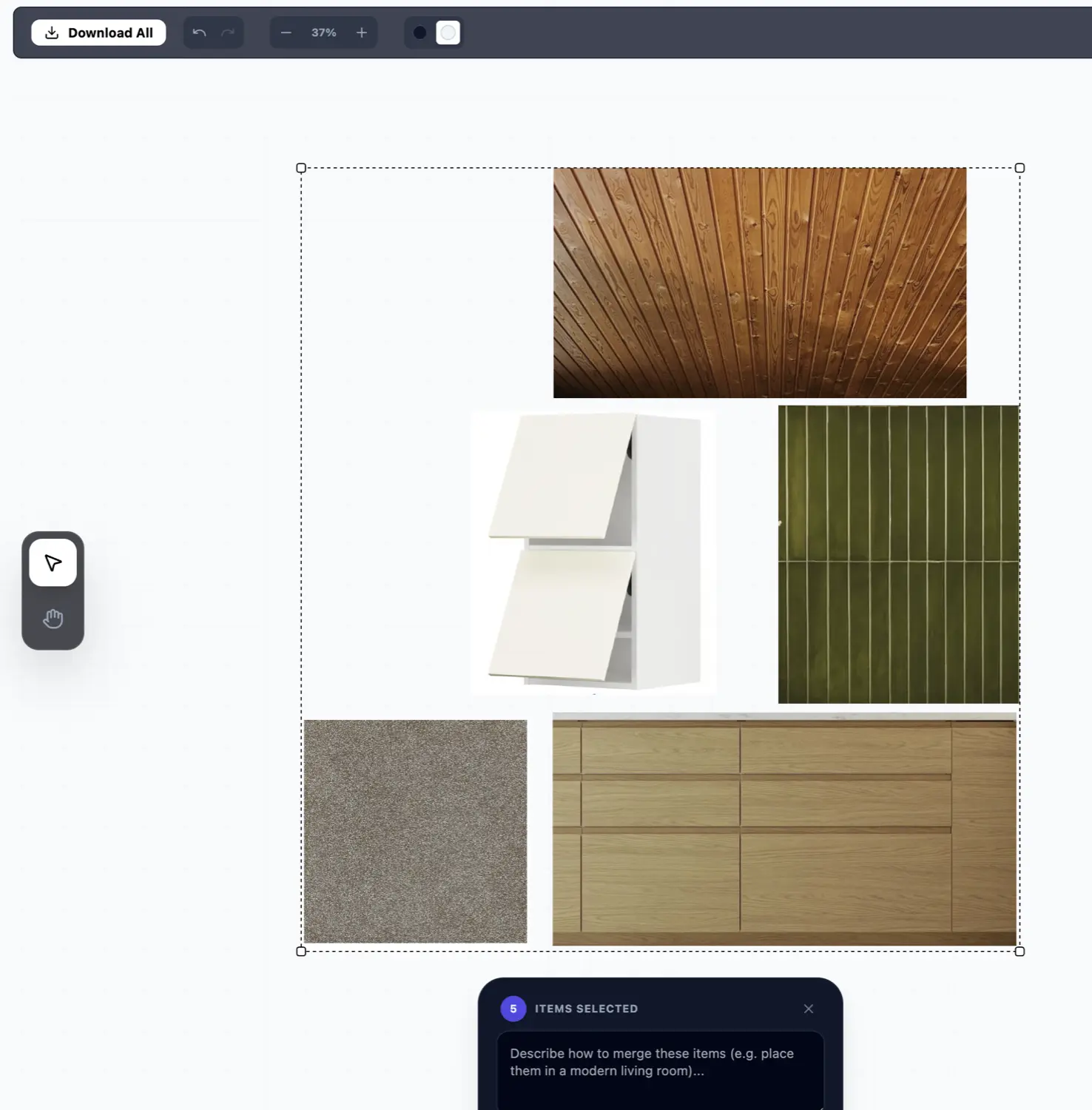
Prompt used:
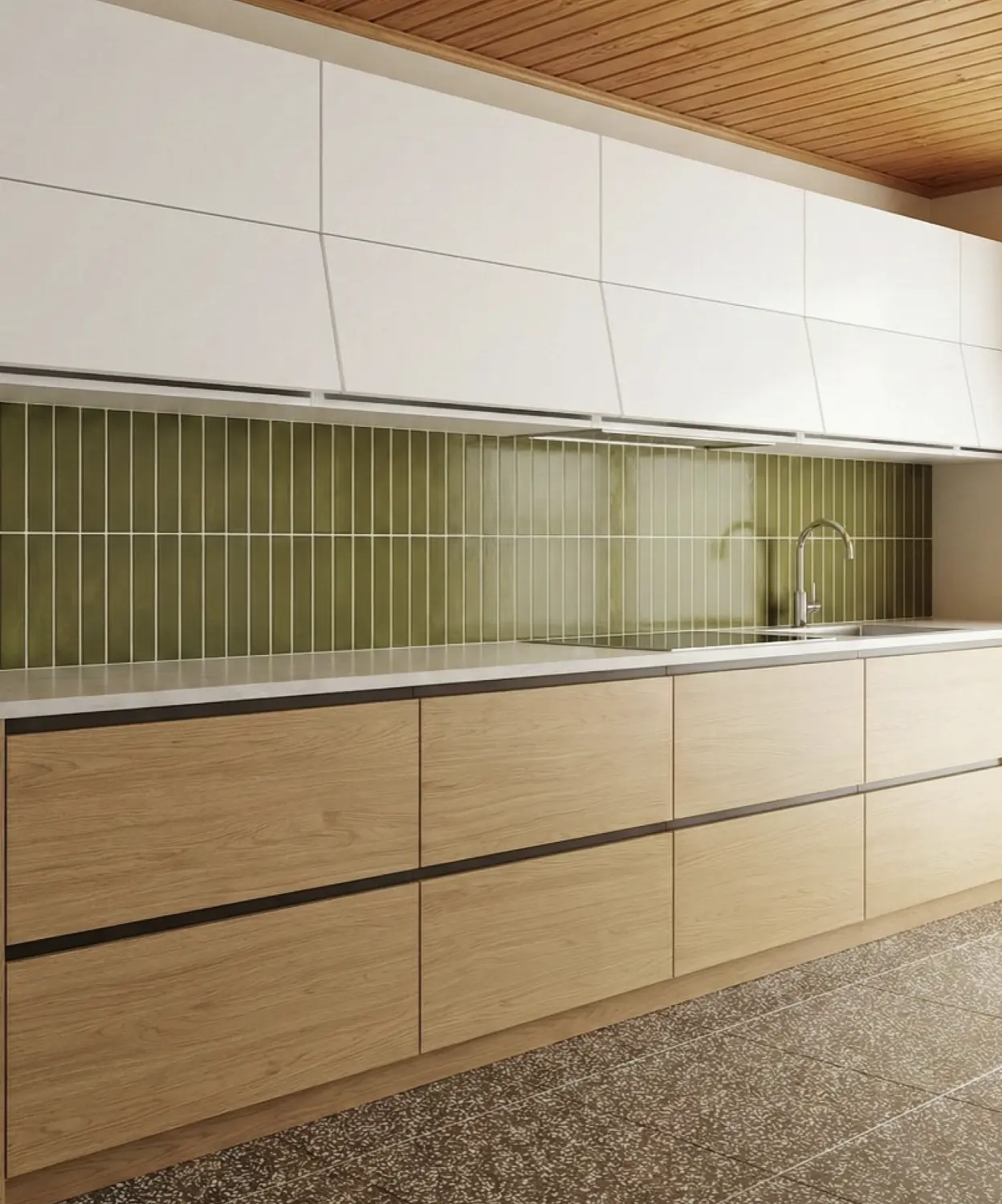
using the images attached create a kitchen with oak style cabinets on the floor, and white wall cabinets on the walls. The ceiling is the pine shiplap. The backsplash tiles should be the green tiles, and the floor should be the brown terrazzo tiles.
Example 2 After
You can also add your own products to the room, either before merging or after by turning your image into a scene.